Why is my compressed GIF not smaller?
Check the result message. In SlimGIF, an unchanged Result size can mean the newly generated GIF was not smaller, so the tool kept your original file. Try another setting only if you can accept changes to colors, dimensions, or appearance.
Open GIF CompressorRead the result message first
If SlimGIF shows the same input and result size, read the message before trying again. The tool compares the generated GIF's byte count with your original file. It uses the generated file only when it is strictly smaller.
When the generated file is equal in size or larger, the download contains your original GIF. The message is: No smaller result with these settings. Download keeps the original GIF unchanged. This is a fallback, not a measured reduction.
What the comparison actually does
The comparison in SlimGIF is generated.size < input.file.size. Equality does not pass that check. The selected output is smaller ? generated : input.file, so the displayed Result size is the size of the file you can download.
On the fallback path, the generated candidate's size is not displayed. The screen therefore cannot tell you whether that candidate was equal to the source or larger. It tells you that no smaller download was selected.
The fallback download still receives a filename ending in -compressed.gif. That filename alone does not prove that its bytes were reduced. Use the size and result message together.
Choose what you are willing to change
Lossless settings in this tool set Colors to 256, Lossy strength to 0, and Dimensions to 100%. Start there if you want to keep those settings unchanged. If the result stays the same size, a smaller result may require accepting a change to appearance or dimensions.
Reduce Dimensions when the final image can be displayed smaller. Reduce Colors when a simpler palette is acceptable. Increase Lossy strength only when visible changes are acceptable. Change one control, compress again, and inspect the new preview before downloading.
Retrying is not the same as accepting the result
Changing a control does not automatically recompress the GIF. Press Compress GIF again to generate a new candidate. The previous result remains visible when you change settings; the status asks you to compress again. Finish that new run before downloading if you want the changed settings applied.
Watch a complete animation cycle and inspect text, gradients, and edges. Then download and reopen the saved GIF. Comparing byte counts answers the size question; watching playback answers whether the result is useful to you.
A measured example has limits
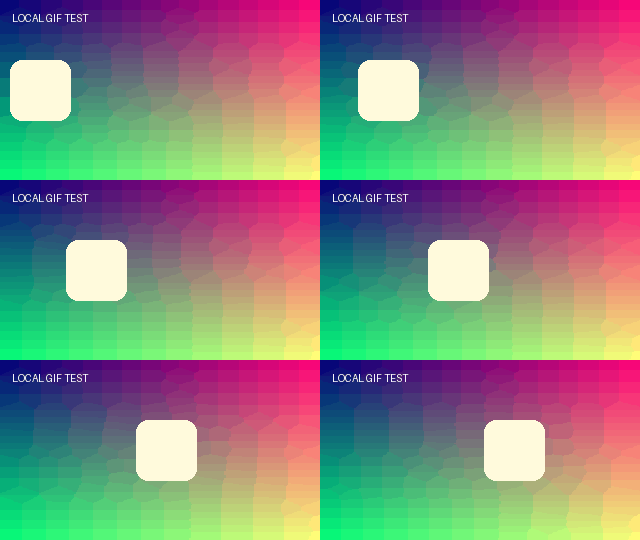
Our recorded example started at 129,370 bytes and produced a saved output of 49,209 bytes. The saved GIF was parsed again: its 12 frames and alternating 80 ms and 120 ms delays matched the source. Those readings describe that file and that run, not what an arbitrary GIF will achieve.
Download the original example GIF or read the animation-preservation checklist. A previous successful reduction does not predict your next result.
Why not keep a larger generated GIF?
SlimGIF selects the original file when the generated candidate does not reduce file size. This avoids replacing your source with a larger download. It also means this tool does not offer that larger candidate as a separate downloadable result.
Does an unchanged size mean compression failed?
An error is reported as Compression failed: followed by its message. A completed run with the original-file fallback is a different outcome: the engine produced a GIF, but the size comparison did not select it.
Can I guarantee a target file size?
This page does not promise a target byte count. Use the actual Original and Result sizes after each completed run. If you cannot accept changes to dimensions or appearance and no smaller candidate is selected, keep the original.
Where does my file go?
Files chosen, dropped, or pasted into SlimGIF are processed in your browser without uploading them. URL import downloads a GIF from its source website; that source must permit browser access. No account is required.
Sources and scope
The fallback, comparison, controls, and status messages above describe SlimGIF’s published script. The example uses our saved fixture and recorded local run. EZGIF’s optimizer documentation describes several compression methods; this page focuses on interpreting SlimGIF’s result.