Compress GIF without losing animation
Use a GIF compressor that keeps the animation rather than exporting a still image. In SlimGIF, start with Lossless settings, compress, compare both previews, then download and reopen the saved GIF. Smaller output is not guaranteed, and preserving animation does not mean every setting preserves the original appearance.
Open GIF CompressorStart with a copy of the original
Keep the original GIF so you can start again. Choose a local file on the homepage, drop it into the tool, or paste a GIF file. Processing happens in your browser. Importing a direct URL instead contacts the website hosting that image to download it; local files are not sent to that website.
Which setting should I change first?
If you want to preserve the original palette and dimensions, select Lossless settings. This sets colors to 256, lossy strength to 0, and dimensions to 100%. These controls describe what the tool changes; they do not promise a particular file size.
If the result is still too large, change one setting at a time. Reduce dimensions when a smaller displayed image is acceptable. Reduce colors when a simpler palette is acceptable, watching gradients and small details. Increase lossy strength only if you can accept visible changes. Run compression again after changing a setting.
Does reducing GIF size remove frames?
SlimGIF does not deliberately drop frames. Its engine optimizes frame rectangles and transparency, and offers palette reduction, lossy compression, and resizing. Frame delays and loop settings are retained. This is the behavior of this tool; other GIF optimizers can offer frame removal as a separate method.
Watch the original and result through a complete cycle. Look for missing motion, flashes, changed colors, clipped edges, or text that became difficult to read. Side-by-side previews are useful for inspecting appearance, but they are not a measurement of exact playback synchronization.
Check the file you actually download
Use Download GIF and open the saved file in a browser. Confirm that it still animates and that the motion and dimensions are suitable for where you will use it. Inspecting only the on-page preview skips this final check.
Compare the displayed Original and Result sizes. They come from the file bytes, not an estimated reduction. If the generated output is not smaller, SlimGIF returns the original file and says so. Downloading in that case preserves your source rather than giving you a larger replacement.
A local example, not a compression promise
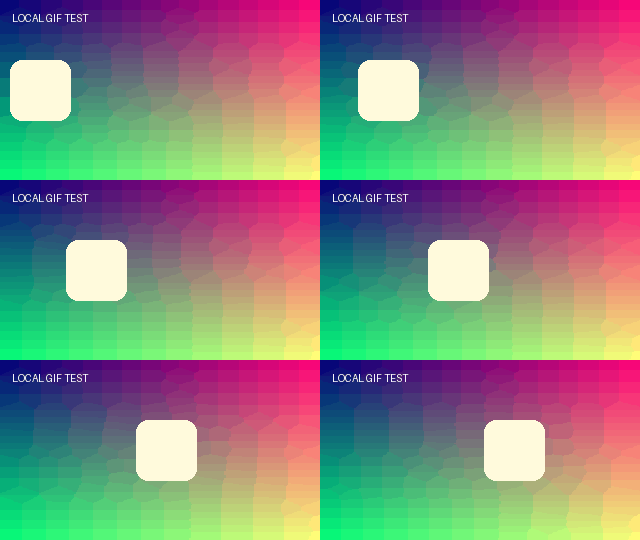
Our saved test GIF has 12 frames at 320 × 180 pixels. Its input size is 129,370 bytes; the saved compressed output measured 49,209 bytes. Re-parsing that output confirmed the frame count and alternating 80 ms and 120 ms delays matched the input. These observations apply to that fixture and recorded run, not to other GIFs.
You can download the original example GIF to inspect it yourself. Your output depends on the file and settings, so use the actual sizes shown after your own compression run.
Can every animated GIF be compressed?
No smaller result is guaranteed. Already optimized GIFs may offer little room for reduction. This tool accepts animated and still GIF87a / GIF89a files, with a 50 MiB per-file limit, a maximum of 4,096 pixels on either side, and a total frame-pixel limit of 100 million. Browser memory and processing speed can impose additional practical limits.
Do I need to upload the GIF or sign in?
No account is required. Selected and pasted GIF files are processed in memory on your device, with no added watermark or saved file history. Keep the tab open during compression. If you use URL import, the source website must allow the browser to download its GIF.